Using the iOS app
Temperature
Choose left or right, then drag the radial dial or use the step controls. Link mode lets you apply changes to both sides. The app distinguishes current temperature from the requested target; the glow communicates heating or cooling.
Schedule
Choose a side and day, adjust the temperature curve by phase, and set bedtime, alarm, and power controls. Cool, Balanced, and Warm presets provide starting points. Review the final values before saving.
Biometrics
Explore heart rate, HRV, breathing rate, and sleep sessions. Tap charts to inspect values. The app supports smoothing, outlier filtering, and raw CSV export. Sleep stages are estimates from on-device analysis; gaps in source data affect what can be shown.
Sensors and status
The sensor view provides live measurements. Status groups service health, Wi-Fi, water level, calibration, model inventory, and logs. Refresh if a value appears stale.
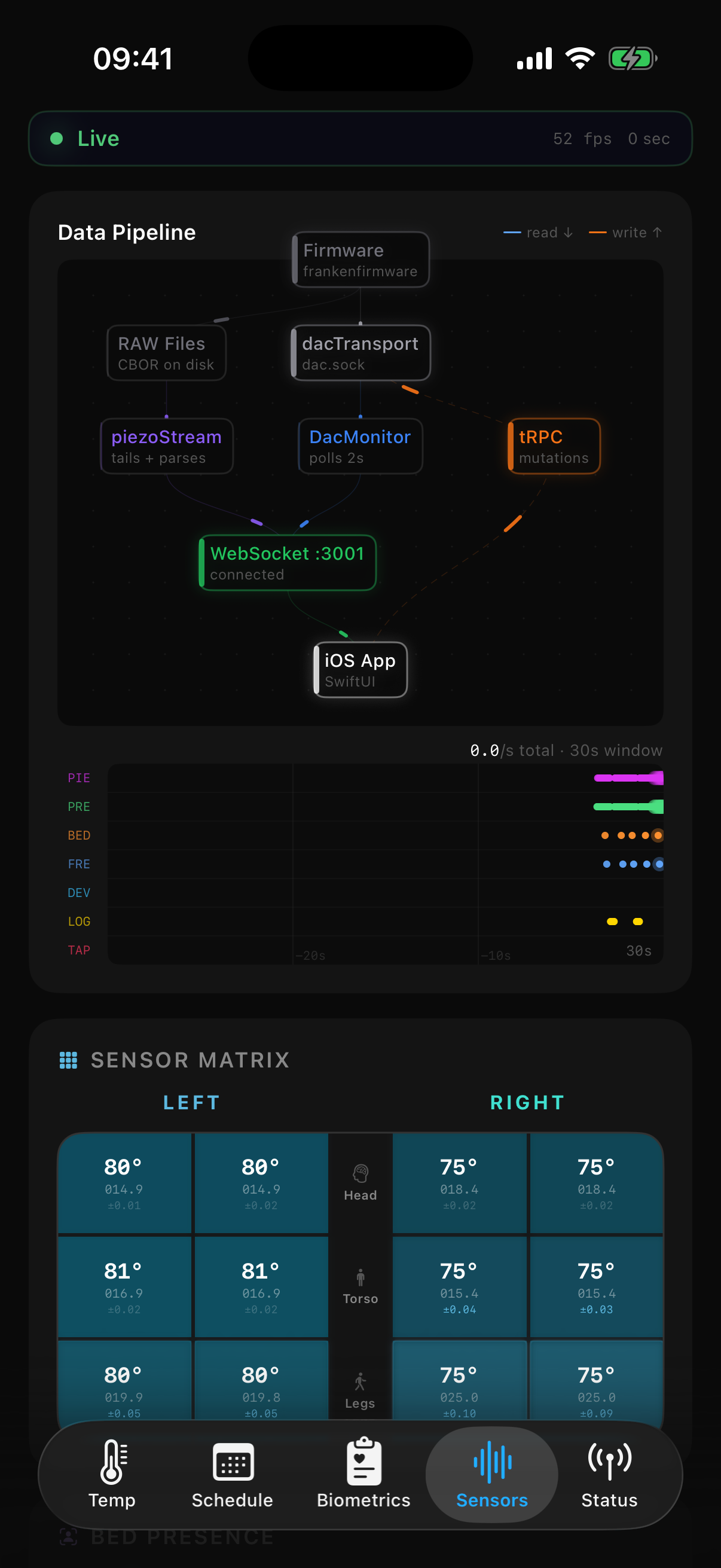
Some status actions affect the running Pod, including calibration and internet-access settings. Check the selected device and read the action’s prompt before changing operational settings.
Troubleshooting the app
- No devices: verify Local Network permission, network isolation, and manual IP connectivity.
- Controls fail: confirm Core is running and the backend choice matches your server.
- Charts are empty: check the selected side/date and the biometrics services in Core.
- An update breaks a screen: include app/Core versions and the affected action in an iOS issue .
Source reference: Feature reference