HomeKit
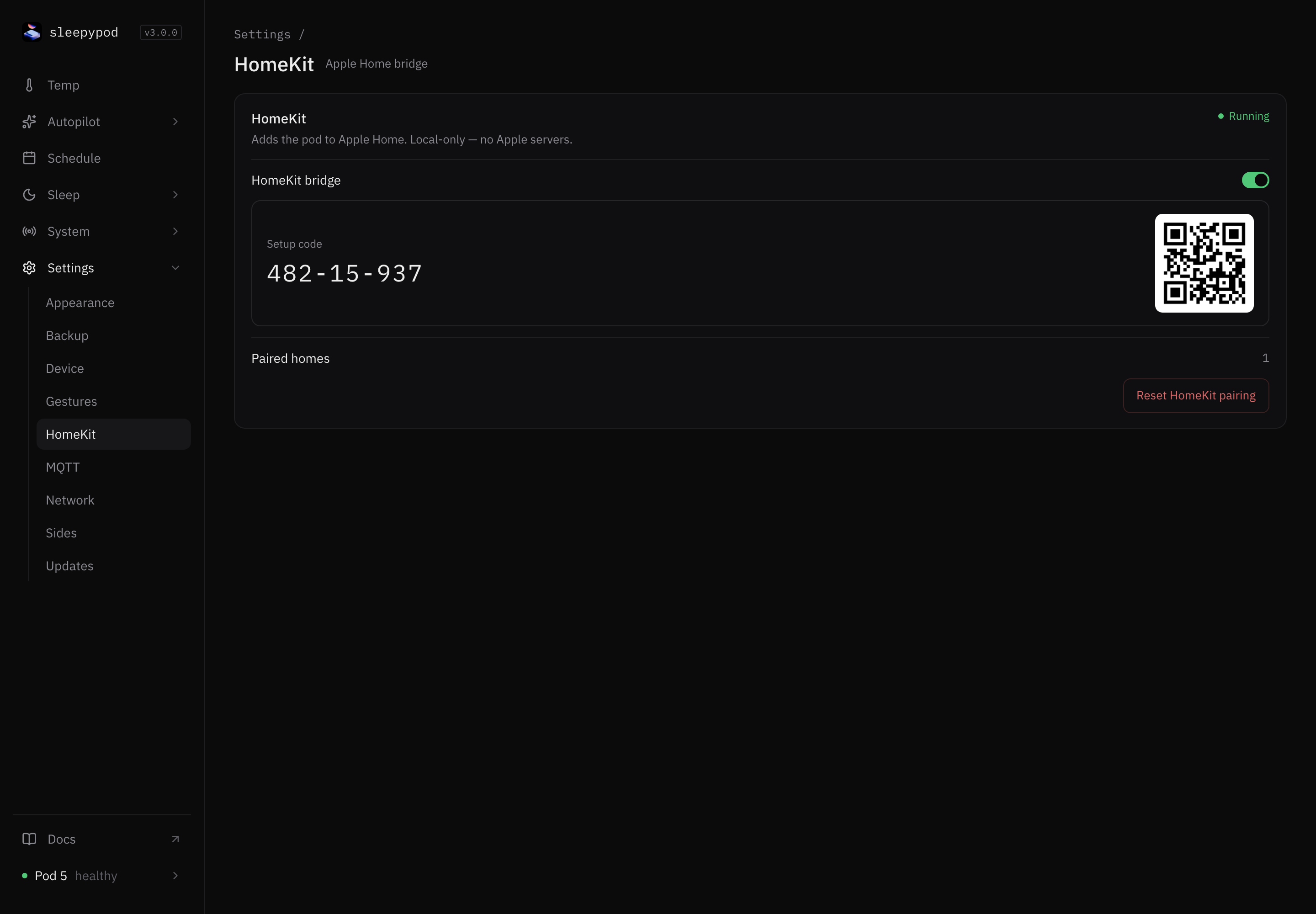
Settings → HomeKit adds the Pod to Apple Home. Pairing and control stay on your local network; no Apple servers are involved.
Pair with Apple Home
- Turn on HomeKit bridge. The status changes from Starting to Running.
- A Setup code and QR code appear.
- On your iPhone, open the Home app, choose Add Accessory, and scan the QR code or enter the eight-digit code.
- Assign the new accessories to a room.
Paired homes shows how many Apple homes are paired. Until you pair, it says None yet.
Core adds a thermostat, power switch, occupancy sensor, and snooze switch for each side, plus priming and room-temperature accessories for the Pod. See the HomeKit reference for how each one behaves.
Reset pairing
Reset HomeKit pairing appears once a home is paired. It gives the bridge a new identity, with a new code and QR.
After a reset, the old bridge stays in the Home app and its tiles show No Response. Remove it from Home yourself, then pair again with the new code.
Keep the setup code private. Anyone on your network with the code can pair while the bridge is waiting for a home.
Source reference: HomeKit settings · HomeKit API