Settings, backup, and maintenance
Settings contains things you configure. Live operating state belongs in System. On desktop, sections appear beneath Settings in the sidebar; on a phone, open a section from the Settings index.
Appearance and sides
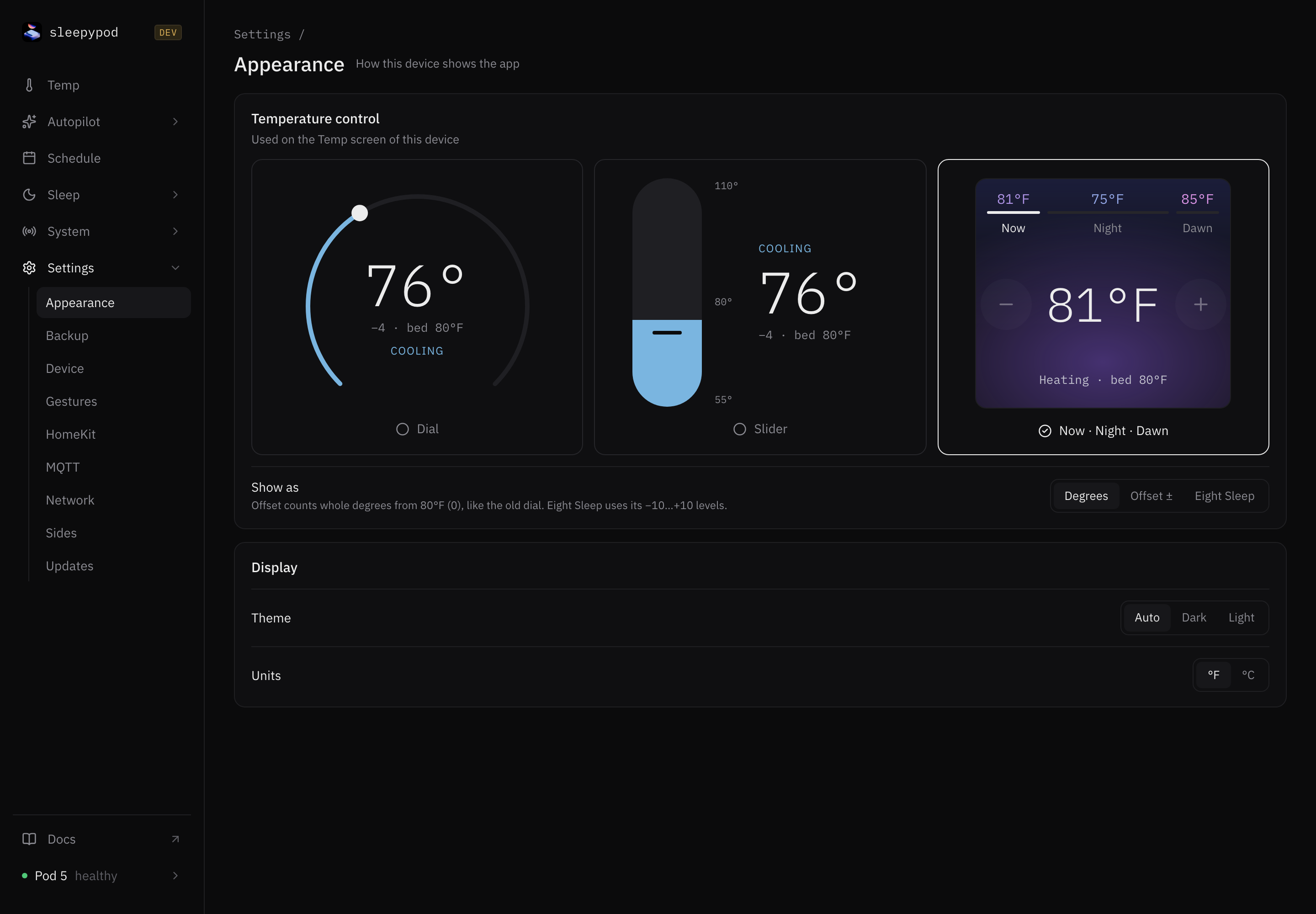
In Appearance, choose Dial, Slider, or Now · Night · Dawn, plus theme and temperature display. Control style, display mode, and theme are stored in this browser. Units use the Pod-wide setting.
In Sides, select the person/side before changing its profile. Away mode pauses its schedule and keeps it off until you return. Auto-off uses bed-presence information, so check the presence availability indicator before relying on it. Always on refreshes the firmware’s normal heating timeout; it does not remove the independent safety and configured power limits.
Cover gestures
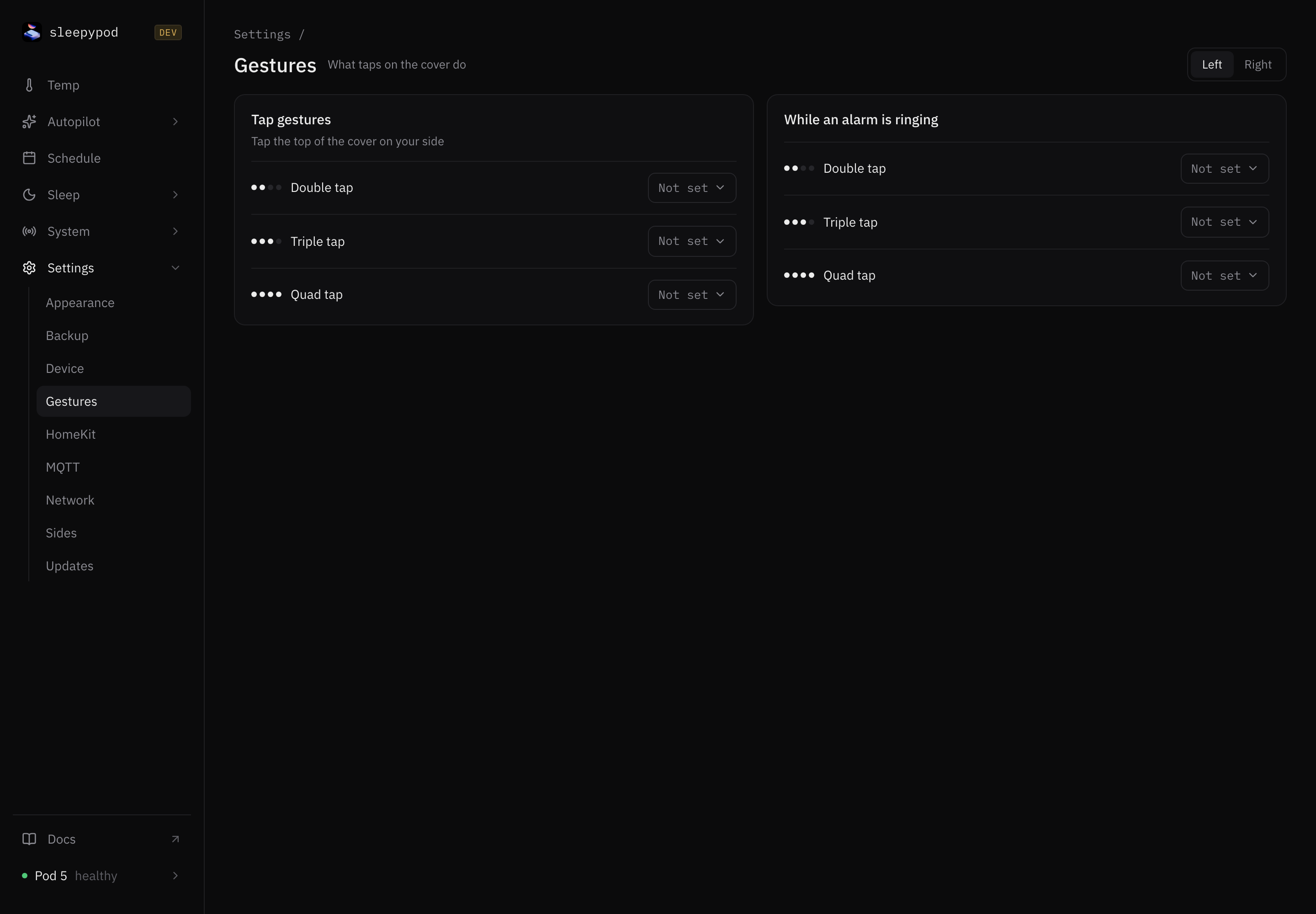
Open Gestures, select a side, and choose the tap action to edit. Temperature actions specify direction and amount. Alarm actions specify what to do while ringing, snooze duration, and behavior when there is no alarm. Test the action on the correct side. Firmware and cover behavior vary, so confirm the physical result rather than assuming a saved configuration proves it.
Device and network
Device contains timezone, maximum-on duration, pump protection/recovery, daily priming and reboot, and LED behavior. Check the timezone before troubleshooting scheduling. Set maintenance times when interruption will not disturb a sleeper.
Network controls Pod internet access. Core is designed for a trusted local network; its LAN APIs are not an authenticated public service. Keep the app and control ports off the public internet. Updates can require temporary outbound access. Use System → Dashboard to inspect current network/firewall status.
HomeKit and MQTT each have their own opt-in configuration. Follow the integration guide for pairing, broker testing, and discovery.
Two different backup workflows
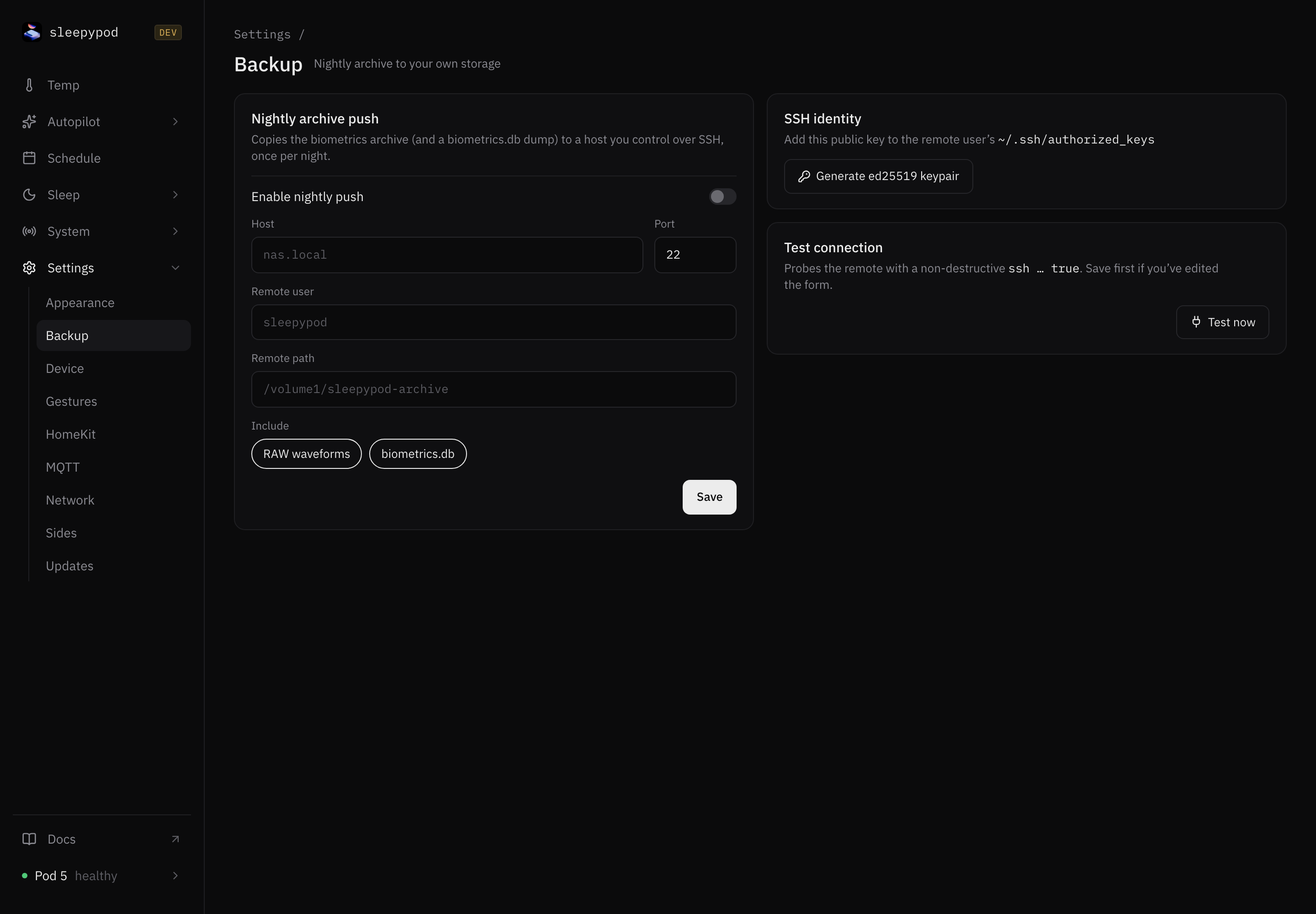
Settings → Backup configures nightly archive push: sensor archives and a biometrics database dump are copied to an SSH host you control. Enter host, port, user, and remote path, configure the displayed SSH identity on the destination, and use Test connection before enabling the nightly push. A RAW archive may be empty on NATS-only firmware; inspect the pipeline rather than assuming the push failed.
System → Databases → Download backup uses SQLite online backup to copy both databases while the Pod continues running. This is the appropriate distinction when you also need configuration and schedules. Store a known-good copy before migration or recovery work. Database files contain personal history; handle the download accordingly.
Restoration is a maintenance operation: identify the actual data directory and stop every process writing the databases before replacing files. Do not copy an active SQLite database without its consistency mechanism or delete databases as a routine diagnostic step. Follow the source runbook for the installed version.
Storage and updates
Use System → Storage to inspect usage and preview cleanup. sp-storage-cleanup --dry-run --json prints the proposed cleanup from SSH. Review what would be removed before executing cleanup; database-backup removal is a separate option.
Use Settings → Updates to inspect software and update channel. After an update, verify the build commit, service health, hardware reconnect, and sensor freshness. See installation and deployment workflows.
Source reference: Settings sections · Settings implementation · Database backup UI · Operations tools