MQTT
Settings → MQTT connects the Pod to an MQTT broker. Home Assistant and other home hubs use the broker to read the Pod’s status and send it commands. You need a broker already running, such as Mosquitto; the Pod does not provide one.
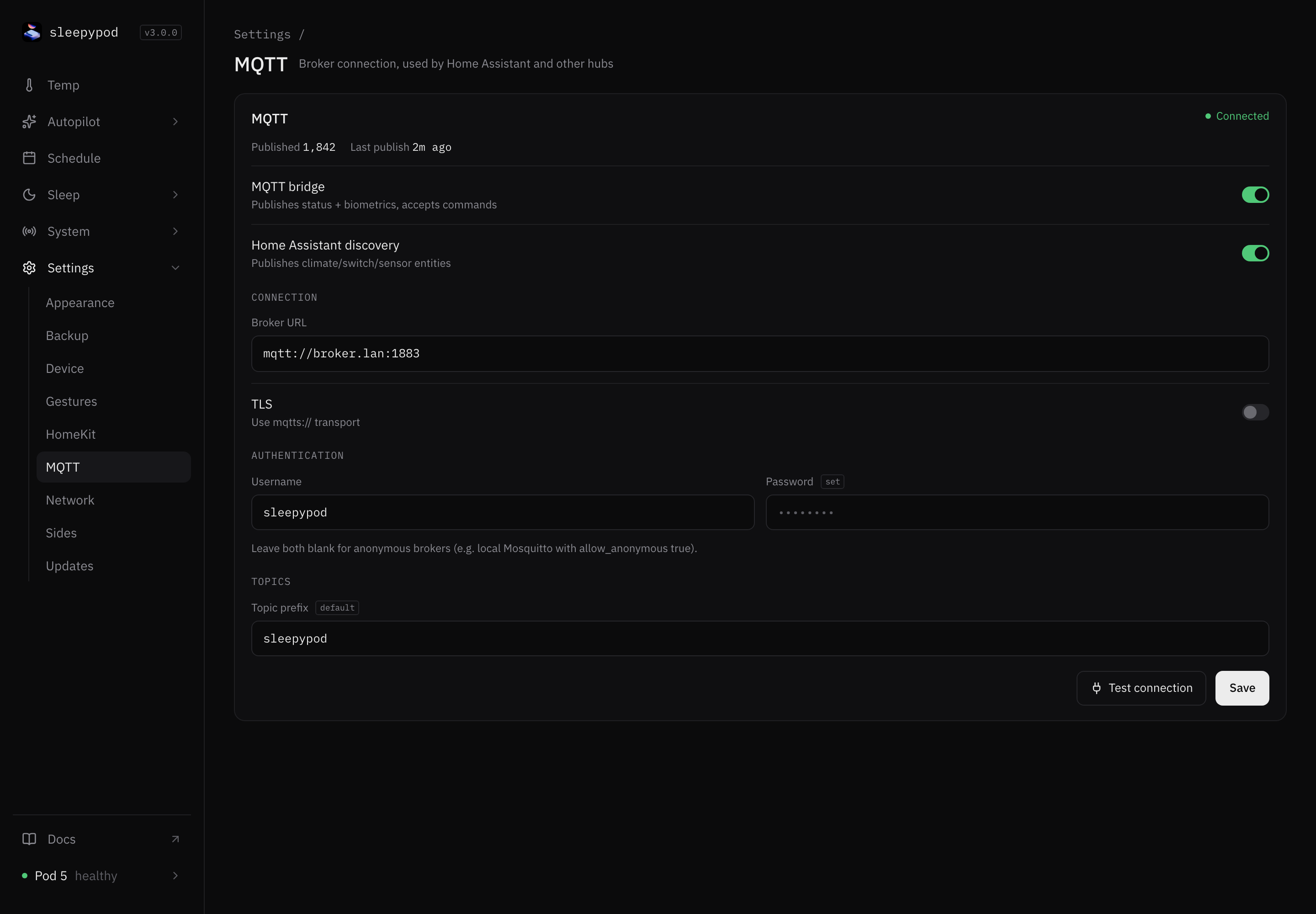
Connect to your broker
-
Enter the Broker URL, for example
mqtts://broker.lan:8883. Turn on TLS to use an encryptedmqtts://connection. -
Enter a Username and Password if your broker needs them. Leave both blank for a broker that allows anonymous connections.
With plain
mqtt://, the username and password cross your network unencrypted. Use TLS whenever the broker needs credentials. -
Select Test connection. You should see Connection succeeded.
-
Turn on MQTT bridge. It publishes status and biometrics and accepts commands.
-
Turn on Home Assistant discovery so Home Assistant creates climate, switch, and sensor entities automatically.
-
Select Save.
The status at the top shows Connected or Disconnected, how many messages have been published, and when the last one was sent. If the connection fails, the last error appears there.
Topic prefix and badges
Topic prefix starts every topic name. The default is sleepypod. Change it if you have more than one Pod on the same broker.
A small badge next to a field shows where its value comes from:
- default: the built-in default.
- .env: the Pod’s environment file. A value saved here replaces it.
- set / unset on Password: whether a password is saved. Saved passwords are never shown.
For topic names, payloads, and an example command, see the MQTT reference.
Source reference: MQTT settings · MQTT API