Schedules and alarms
Core runs scheduled jobs on the Pod. Closing the web app or iOS app does not stop them.
Build a nightly routine
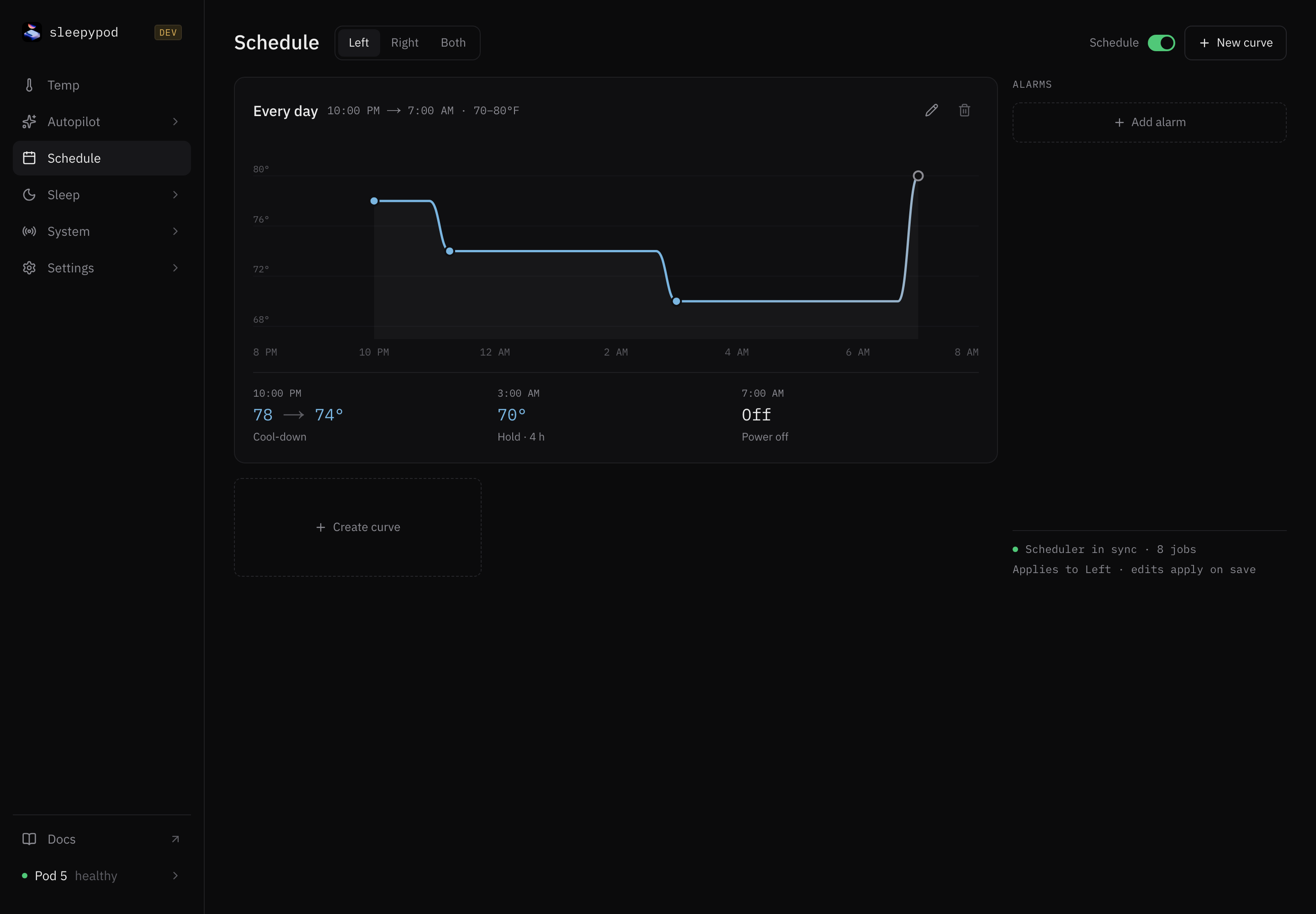
- Open Schedule and choose Left, Right, or Both.
- Select New curve (or the edit control on an existing curve).
- Choose its days, bedtime, wake time, and temperature limits.
- Start with Hot Sleeper, Balanced, or Cold Sleeper, then review the individual setpoints. Presets are starting points, not measured recommendations.
- Save the curve and review any conflicts with existing days. Edits remain local until Save.
- Use Add alarm for a vibration alarm and check its side and days separately.
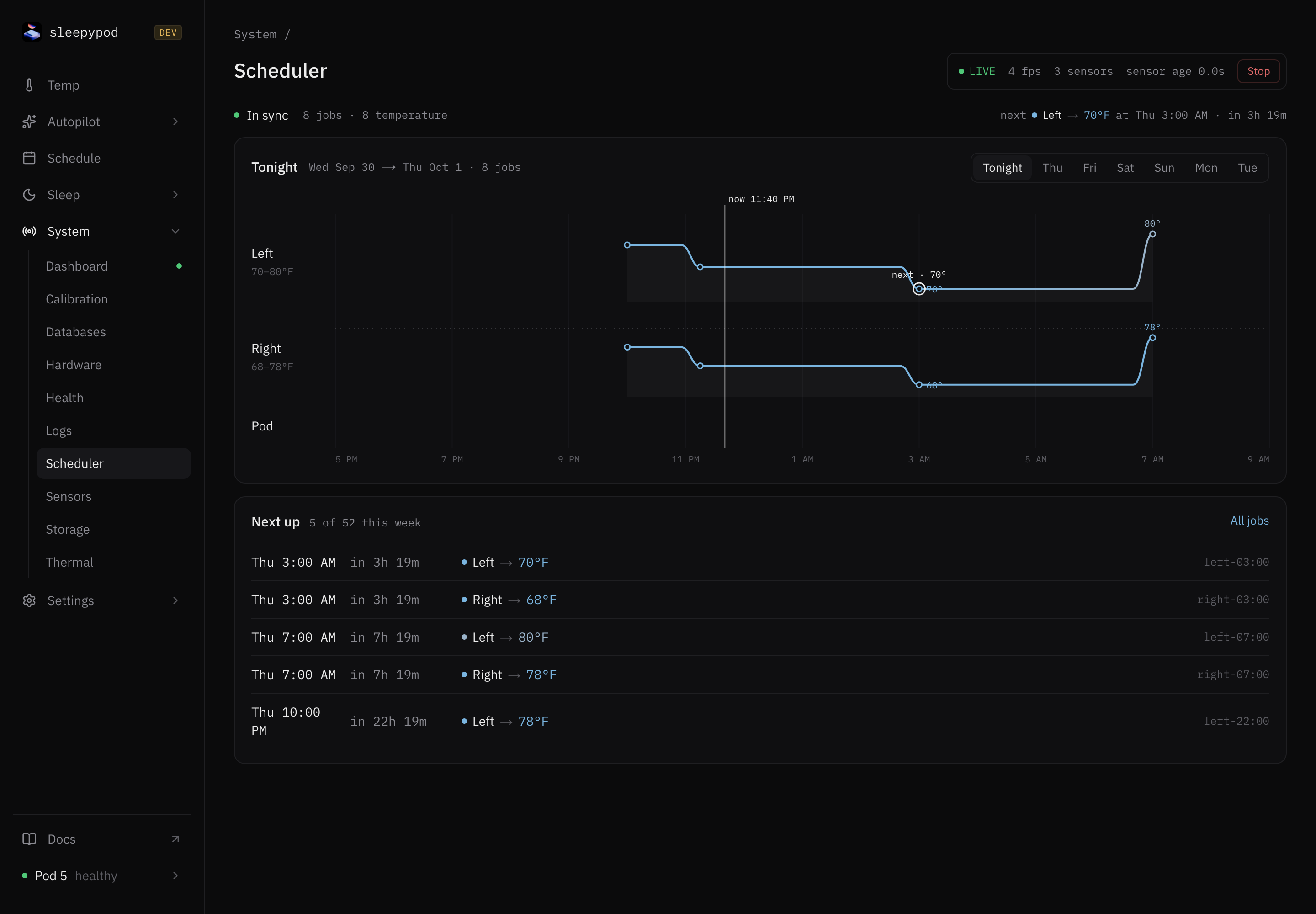
The curve editor groups a routine across selected days. Review its start and end behavior in the resulting card. For detailed job timing, use System → Scheduler. The Schedule switch enables or disables the selected side’s recurring schedule; a manual temperature hold does not change that switch.
Check the timezone
The scheduler uses the device timezone. Verify that setting when events fire at the wrong local time. The Pod’s clock can reset after a power cycle; Core waits for a valid system clock before starting scheduled jobs.
Vibration alarms
Alarm configuration includes duration, intensity, and pattern. Hardware capability differs: the Core README notes that the Pod 5 J55 cover MCU clamps intensity and pattern even though the API accepts them. A saved value does not guarantee that hardware can reproduce it.
Temporary changes
A manual adjustment creates a hold, defaulting to 30 minutes. Schedule and run-once clocks continue during the hold; Resume returns to the point that applies now. A run-once session outranks recurring schedules and Autopilot but remains below a manual hold. See temperature ownership.
On the Temp screen, Night and Dawn edits shift saved phase setpoints across every day matching tonight’s curve. Use the Schedule editor when you want different days or individual point changes.
iOS curve editor
The iOS companion provides per-phase temperature controls, day and side selection, and Cool, Balanced, and Warm presets. See using the iOS app.
Source reference: Current curve editor · Ownership contract · Scheduler and alarms · Alarm hardware behavior · iOS scheduling