Scheduler
System → Scheduler shows the jobs the Pod will run: temperature changes, power, alarms, and maintenance. Use it to confirm a schedule you saved is actually loaded. Nothing here changes the Pod.
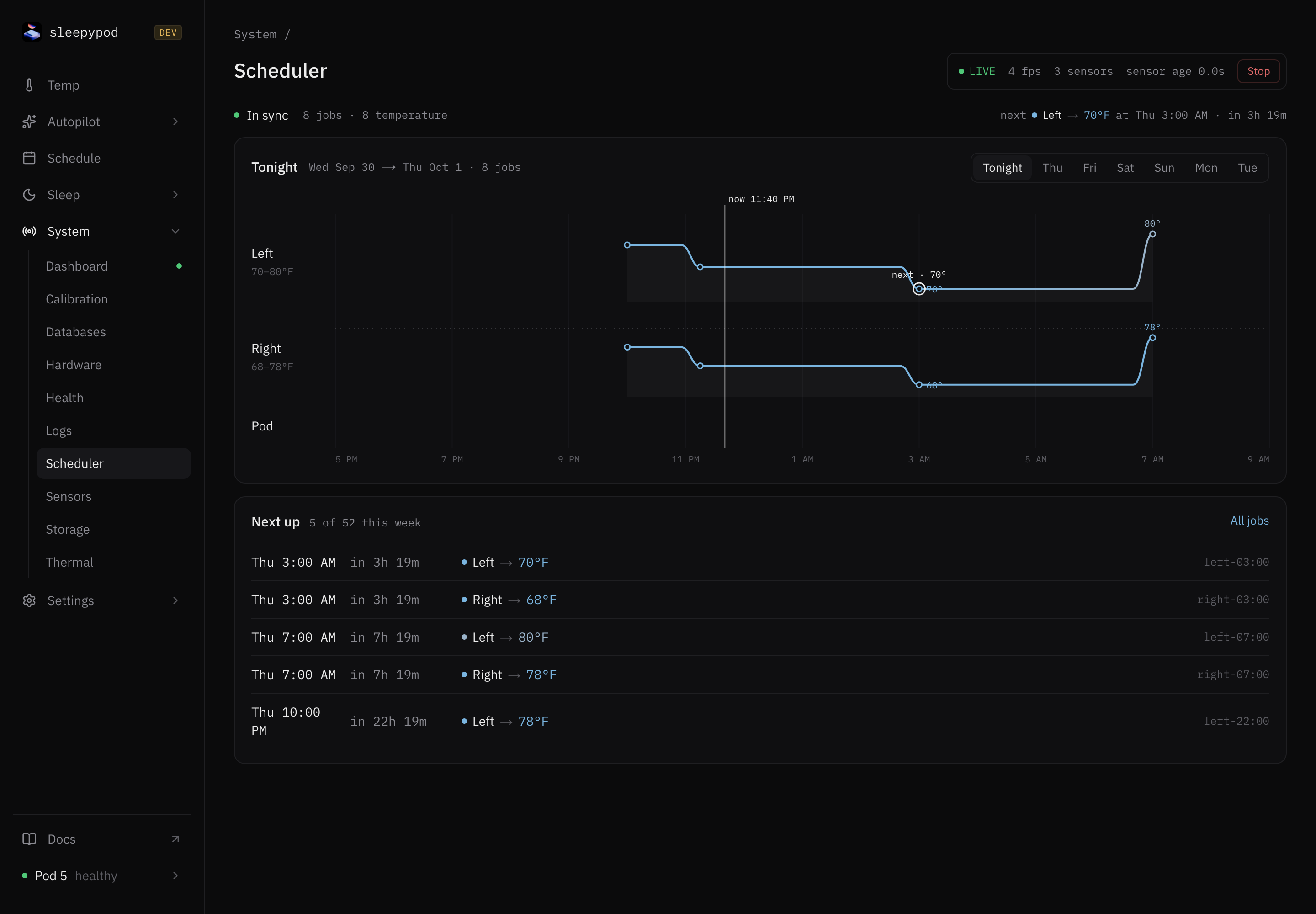
Read the page
- Summary: In sync when every saved schedule is loaded. Drifted · N scheduled vs N loaded means they do not match; check Logs for scheduler errors. Disabled means the scheduler is off. The right side shows the next job.
- Timeline: tonight by default. Choose another night with the day buttons. Each side shows its curve with on, off, and alarm marks; the Pod lane shows Prime, Reboot, Calibrate, Away mode, Run once, Alarm, and LED jobs.
- Next up: the next five jobs, with how long until each.
- All jobs: every job grouped as Temperature, Power, Alarms, Maintenance, and Other, with filters. Select Tonight to go back.
Jobs at the wrong time
Jobs run in the Pod’s timezone. If they fire at the wrong hour, check Timezone in Device. After a power cut the Pod’s clock can be wrong at first; Core waits for a valid clock before it starts scheduled jobs.
To change jobs, use Schedule, Device for maintenance, or Sides for Away mode.
Source reference: Scheduler panel · Scheduler logic
Last updated on